Know exactly where you stand in every class. Right now.
Canvas knows your grades, your deadlines, and everything your professors have posted. It just won't tell you what any of it means. So you end up with six tabs open, doing weighted-average math in your Notes app, guessing whether you can afford to skip the reading, and finding out too late that the final was worth more than you thought.
Eripio connects to your Canvas account and turns all of that into answers: where you actually stand in each class, what you need on what's left, when to study for what, and honest feedback on a draft before you turn it in.
Eripio is in a limited pilot: new Canvas connections are paused. Join the waitlist.
What it does
Your real grade — right now, not at the end.
Eripio uses your course's category weights, from Canvas or read from your syllabus, to show where you stand in each class today, and what you'd need on everything left to land the grade you want. Try “what if I get an 80 on the final” and watch it recalculate.
Feedback on your draft before your professor sees it.
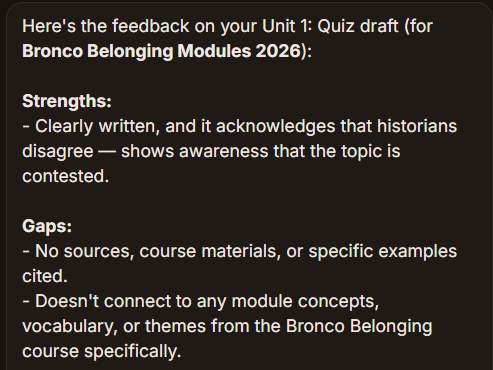
Paste your essay, and Eripio checks it against the assignment, criterion by criterion when your professor attached a rubric in Canvas. It will tell you what's weak and why. It will not write it for you, fix it for you, or finish it for you — that's the point.
A study plan built backward from your deadlines.
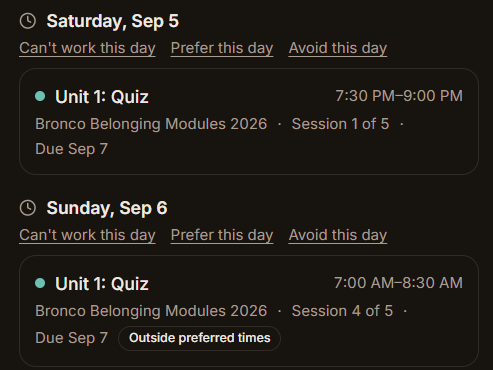
Eripio looks at what's due, what it's worth, and when you actually study, and lays out sessions that fit. It's an estimate, not a contract — move things, and it adjusts.
- Flashcards from what your professor actually posted — built from the syllabus, pages, modules and assignment descriptions your professor posted in Canvas, not a generic deck.
- Ask about your grades and coursework — “Where do I stand in Bio?” “What do I need on the rest of my work to keep an A?” It looks up your grades and course material to answer, and it can be wrong.
- Reminders that know your schedule — a heads-up when something's due — not at 3am, and not for things you already did.
Eripio's AI features (chat, draft feedback, study material, questions for your professor and reading a syllabus) use Claude, a generative AI model made by Anthropic. What you send to them, and the grades, deadlines and course material they look up, goes to Anthropic.
What's free, what's not
Free forever, no card
- Connect Canvas and stay synced automatically
- Your grade in every class, weighted the way Canvas or your syllabus says
- “What do I need on the final” — and what-if any score you like
- Your full study schedule, built from your Canvas due dates and the ones you add
- Deadline reminders and study nudges
Eripio Plus — $10/month
Everything in Free, plus —
- Flashcards and quiz questions from your professor's own material
- Draft feedback against the real rubric, before you submit
- Questions worth asking your professor
- Eripio AI with no daily message limit
Free accounts get 5 Eripio AI messages a day, plus one free study set (or one set of questions for your professor), one free draft review, and one full scheduling conversation — so you can see what it does before deciding.
What it actually looks like
How it connects to Canvas
Eripio reads what your account can see in Canvas: your profile, your courses, assignments and deadlines, your own grades and the comments and rubric scores on your work (including a classmate's peer-review comments and their name), each course's list of teachers and TAs, and the material your professors have published. It doesn't read course files.
Eripio is in a limited pilot. The method Canvas intends for apps like this one is an institutional connection your school approves, and Eripio is built for it and working toward getting one.
Once connected, Eripio checks Canvas for updates a few times a day, including when you aren't using it, so your grades and deadlines are current when you open it. You can disconnect at any time in Settings.
Eripio can't reach another student's grades or submissions, and it is not connected to your school in any way.
I built this because I needed it
I'm a first-year at Santa Clara. Eripio is new, and you'd be one of the first people using it — some things will be rough, and I'll fix them fast.
If something breaks or you think something's missing, email me directly. support@eripio.app goes to my actual inbox, not a ticket system.
Start with one class, or all of them.
Eripio is in a limited pilot. New Canvas connections are paused for now. Join the waitlist and we'll email you when you can connect Canvas. Questions? support@eripio.app.